Reviewing Transactions
Categorizing is the work that makes everything else true, and the app is built so you do less of it every month. Go to Transactions > Inbox.
Review by Exception
The Inbox doesn’t show you everything. It shows what genuinely needs a decision, and tells you what it already handled.
The header splits your queue two ways: N need you and N auto-categorized. The first is real work. The second is a summary you can glance at, expand if you’re curious, and otherwise ignore.
That’s the whole design. If the app is confident, it acts and tells you. If it isn’t, it asks.
What You’ll See
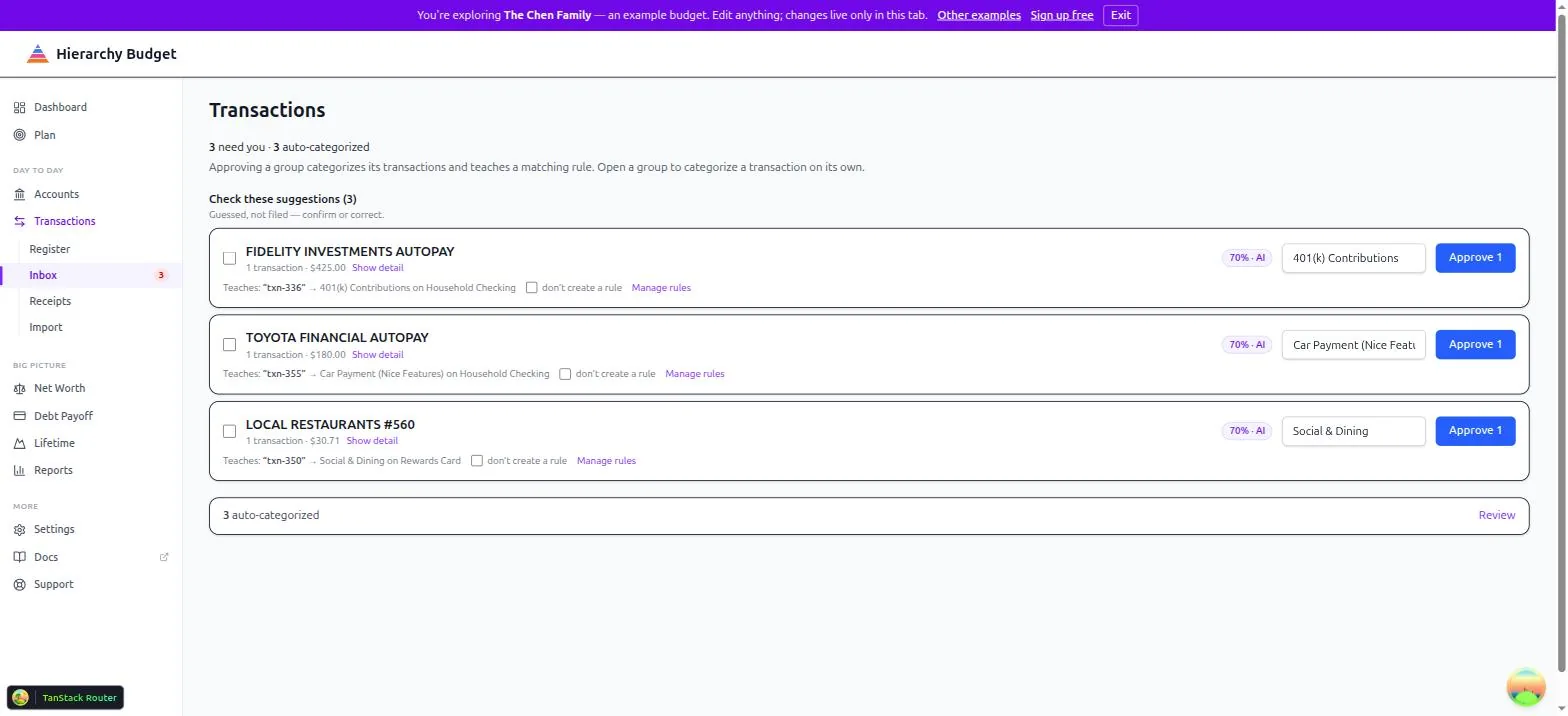
Suggestions to check
Transactions the app categorized with moderate confidence, grouped by payee. Each group shows the payee, how many transactions it covers, the total, the category it picked, and a confidence score.
Approve accepts the group. Correct the category first if it’s wrong - the correction is the more valuable action, because of what it teaches.
Open a group to categorize one transaction differently from its siblings, when a payee genuinely serves two needs.
Transfer pairs
Money moving between your own accounts arrives as two transactions that look like an expense and an income. The Inbox spots the pairs and offers to link them, which removes both from your spending totals. Confirm the ones that are real transfers.
The auto-categorized digest
A collapsed line telling you how many were filed automatically. Review opens it if you want to check the app’s work. Most months you won’t.
Rules That Learn
Approving a group teaches a rule: this payee, on this account, in this direction, means this category.
See them at Settings > Rules. Each shows the payee text it matches, the category and level it applies, and how many times it’s fired.
Auto-approve is the checkbox that matters. Tick it and matching transactions skip the Inbox entirely - they’re categorized on arrival and you never see them. Groceries at your usual supermarket is a good candidate. Anything ambiguous is not.
Apply to inbox runs your rules over what’s already waiting. Normally rules only touch newly imported transactions, so this is the button for “I just made a rule, use it on the backlog.” It never touches anything you’ve already recorded.
Untick auto-approve, or delete a rule, whenever it stops being right.
Payees
Settings > Payees is the list of who you pay. Each payee carries a default category and match patterns, which pre-fill imported transactions before any rule runs.
Banks are inconsistent about naming - the same shop can arrive as three different strings. Merge duplicate payees here so your reports count them as one.
Recurring & Subscriptions
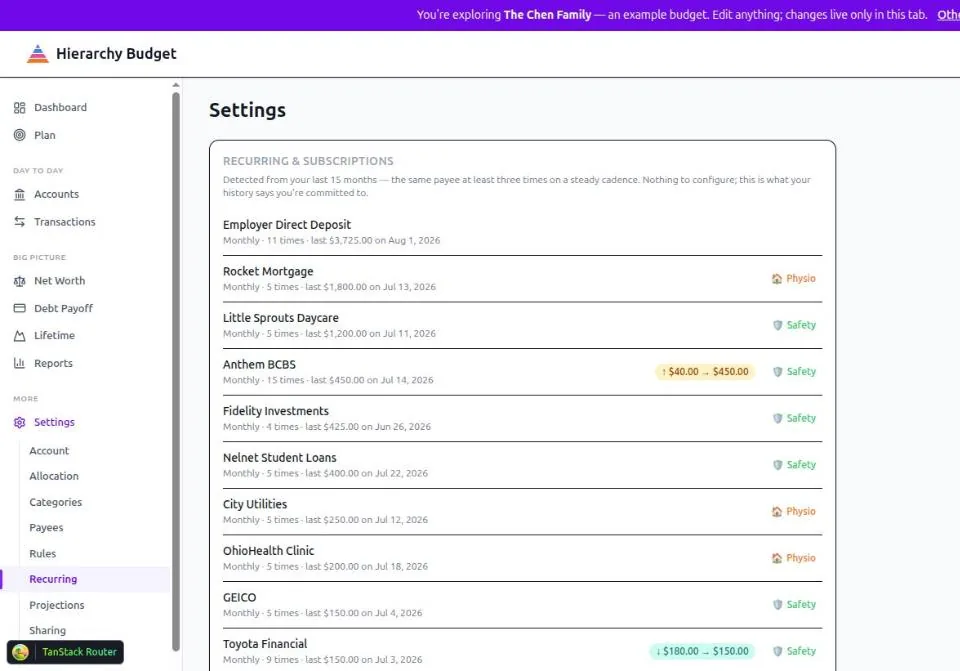
Settings > Recurring is a read-only detection, not a setting. It reads the last 15 months and lists every payee you’ve paid at least three times on a steady cadence: how often, how many times, and the most recent amount.
There’s nothing to configure. It’s a mirror: this is what your history says you’re committed to.
Watch for the price-change chips. When a recurring amount moves, the row flags it - $40.00 → $450.00, or $180.00 → $150.00. That’s how you catch a subscription that quietly went up, or a promotional rate that ended.
A Workflow That Works
- Open the Inbox when the badge appears in the sidebar
- Link the transfers first - they’re unambiguous and they clean up your totals
- Work the suggestions by group, correcting before approving
- Turn on auto-approve for the payees you’re sure about
- Skim Recurring monthly for price changes
Once the rules have bedded in, this is a few minutes a month.
Related Pages
- Transactions > Inbox - The review queue
- Settings > Rules - What the app learned
- Settings > Payees - Who you pay
- Settings > Recurring - Detected subscriptions
- Settings > Categories - Categories and their levels
- Accounts & Register - The full transaction list