Accounts & Register
Track your bank accounts, credit cards and loans, and work the transactions inside them. Go to Accounts to get started.
The Accounts Page
Accounts is the list of where your money sits. Three tiles across the top give you Cash, Credit cards and Net. Below them, accounts are grouped - Bank & cash, Credit cards, Loans - each group showing its own total.
Every row shows the account’s balance, its type and institution, when it was last reconciled, and how many of its transactions are waiting for review. Clicking the row opens that account’s register.
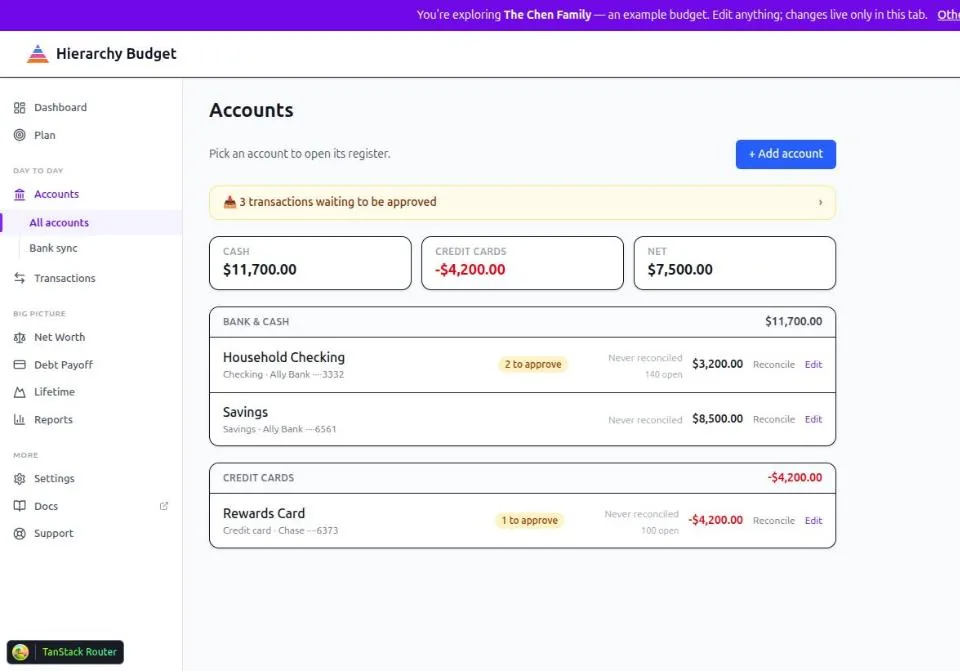
Adding an Account
Click + Add account and fill in:
- Name - e.g. “Household Checking”
- Type - Checking, Savings, Credit card, Cash, Investment, Loan or Other
- Institution - the bank, optional
- Starting balance - the balance before any transaction you’re going to record
| Type | What it’s for |
|---|---|
| Checking | Day-to-day transaction accounts |
| Savings | Interest-bearing savings |
| Credit card | Tracked as a liability |
| Cash | Physical cash |
| Investment | Brokerage accounts |
| Loan | Mortgages, car loans, personal loans |
| Other | Anything else |
Credit cards and loans count as liabilities everywhere else in the app - they reduce your Net Worth, and a debt with a rate and a minimum payment feeds Debt Payoff.
To connect a bank so transactions arrive on their own, see Bank Sync.
The Register
The register is Transactions. Opening it from an account row filters it to that account; opening it from the sidebar shows every account at once.
Finding transactions
- Account - all accounts, or one
- Search - payee or memo
- Date range - This month, Last month, This quarter, This year, Last year, All time, or your own from/to dates
- Sort - newest or oldest first
- A to review chip jumps you to whatever still needs categorizing
Reading a row
Each row carries the date, payee (with the raw bank description beneath it), category, Maslow level, account, and the amount as a deposit or a withdrawal. An AUTO chip means a rule categorized it rather than a person. The status column shows whether it’s cleared.
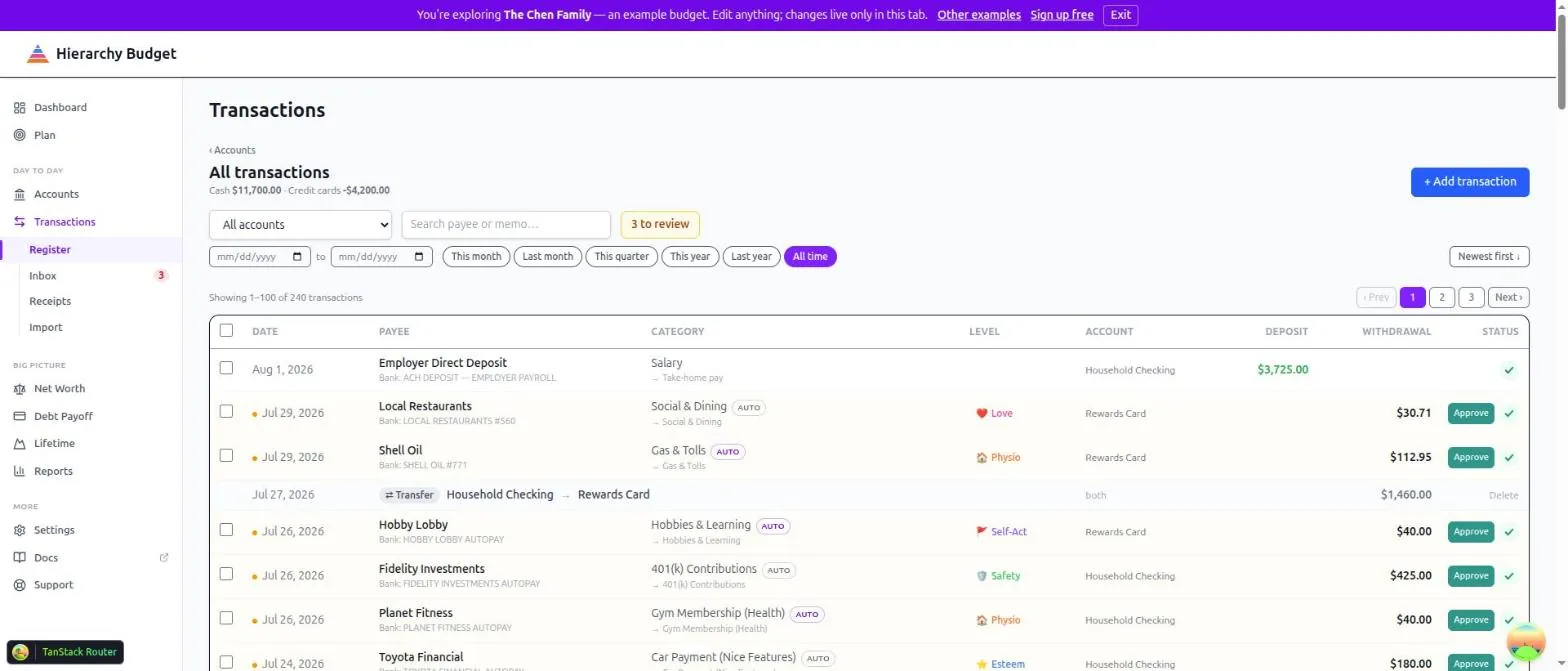
Transfers between your own accounts appear as a single row naming both sides, not as two rows you have to mentally pair up.
Adding and editing
+ Add transaction opens a form for date, payee, amount, type (income, expense or transfer), category, memo and cleared status. Choosing a category sets the Maslow level automatically - there is no separate level to pick.
Click any transaction to edit it. Select several with the checkboxes to get the bulk bar, which categorizes or edits them together.
Splits
A transaction that serves more than one need can be split. A $200 shop that was $150 of groceries and $50 of a gift becomes two lines while staying one bank row. Each line carries its own category, so each lands on its own level of the hierarchy.
This is the mechanic behind the “split it honestly” advice in Getting Started.
Categorizing
Every transaction’s category decides its Maslow level, and that’s what places it in your budget and hierarchy. You don’t set the level directly - it comes from the category, which you configure at Settings > Categories.
Rather than working the whole register, use the Inbox, which shows only what genuinely needs a decision. See Reviewing Transactions.
Reconciliation
Reconciling proves your balance matches the bank’s.
- Click Reconcile on the account row (or from inside the register)
- Enter the statement date and statement ending balance from your bank
- Tick off the transactions that appear on the statement, watching the difference approach $0.00
- Click Finish when it’s zero
Finishing marks those transactions reconciled and records the date and balance, which then shows on the account row. Reconciled transactions are locked against editing - that’s the point of reconciling.
If you can’t get to zero, the usual causes are a missing transaction, a duplicate, or a pending charge that hasn’t actually cleared the bank yet.
How This Reaches Your Budget
- Category sets the Maslow level
- Actuals on Plan > Budget and Plan > Annual are these transactions
- Balances drive Net Worth, which feeds Debt Payoff and Lifetime Planning
- Transfers are excluded from spending totals
Related Pages
- Accounts - Account list and balances
- Transactions - The register
- Reviewing Transactions - Inbox, rules and payees
- Bank Sync - Connect your bank
- Import Transactions - Load a statement file
- Forecast vs Actual - How spending meets the plan
- Settings > Categories - Categories and their levels