Receipts
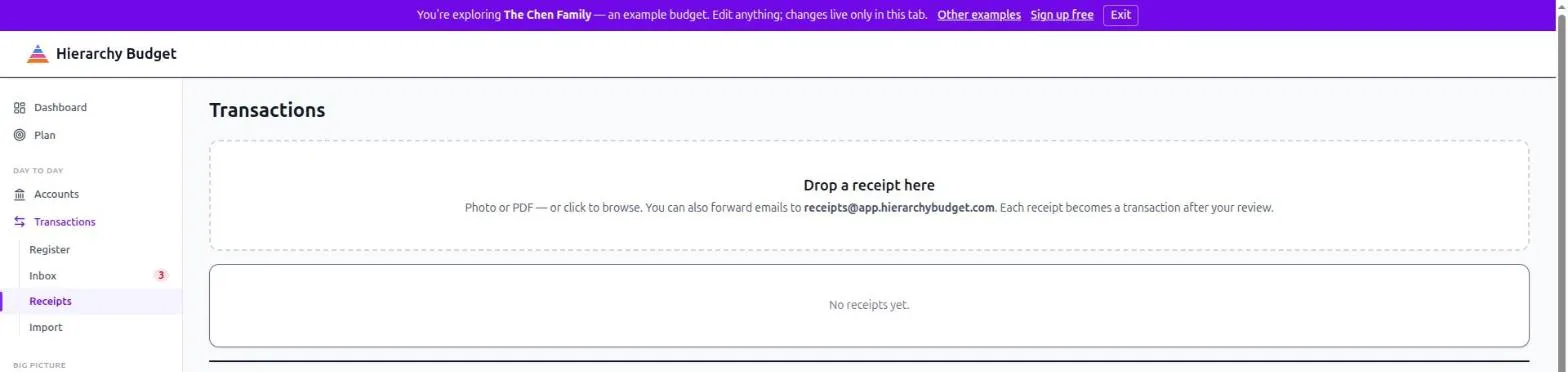
Turn a photo or a forwarded email into a transaction. Go to Transactions > Receipts.
Receipt capture is part of the subscription.
Two Ways In
Drop a file. Drag a photo or PDF onto the page, or click to browse. Phone photos are fine.
Forward the email. Send it to receipts@app.hierarchybudget.com from the address on your account. Order confirmations, digital receipts, emailed invoices - forward and forget.
What Happens Next
The receipt is read for merchant, date, amount and line items. Then it waits for you.
Each receipt becomes a transaction after your review - nothing is written to your register automatically. Open one to check what was extracted, correct anything wrong, and confirm.
Where the receipt matches a transaction you already have - the bank charge for the same purchase - it’s linked to that transaction rather than creating a second one. That’s the common case for card purchases: the bank gives you the amount, the receipt gives you what you actually bought.
Pending receipts show as a badge on the Receipts tab, so nothing gets forgotten.
Why Bother
Bank descriptions are close to useless for this app’s purpose. SQ *MERCHANT 4471 tells you nothing about which need was served. The receipt tells you it was a birthday present, which is love and belonging, not general shopping.
For anything you’d struggle to categorize honestly a week later, the receipt is what makes the honest answer possible.
Tips
Forward the ones that matter. You don’t need a receipt for every coffee. Keep the ones where the category is genuinely ambiguous, or where you’ll want the detail later.
Forward from your account address. Receipts arriving from an unrecognized address can’t be matched to you.
Review in a batch. Let them pile up for a week and do them together - it’s faster than one at a time.
Related Pages
- Transactions > Receipts - Upload and review
- Reviewing Transactions - The wider review flow
- Accounts & Register - Where transactions land